Send and collect an invoice
Invoices is where a bill goes from draft to paid. You don't start a blank invoice here — every invoice is generated from a completed work order first (see Bill a completed work order). This guide covers what happens to an invoice once it exists: reviewing it, sending it, and collecting the payment.
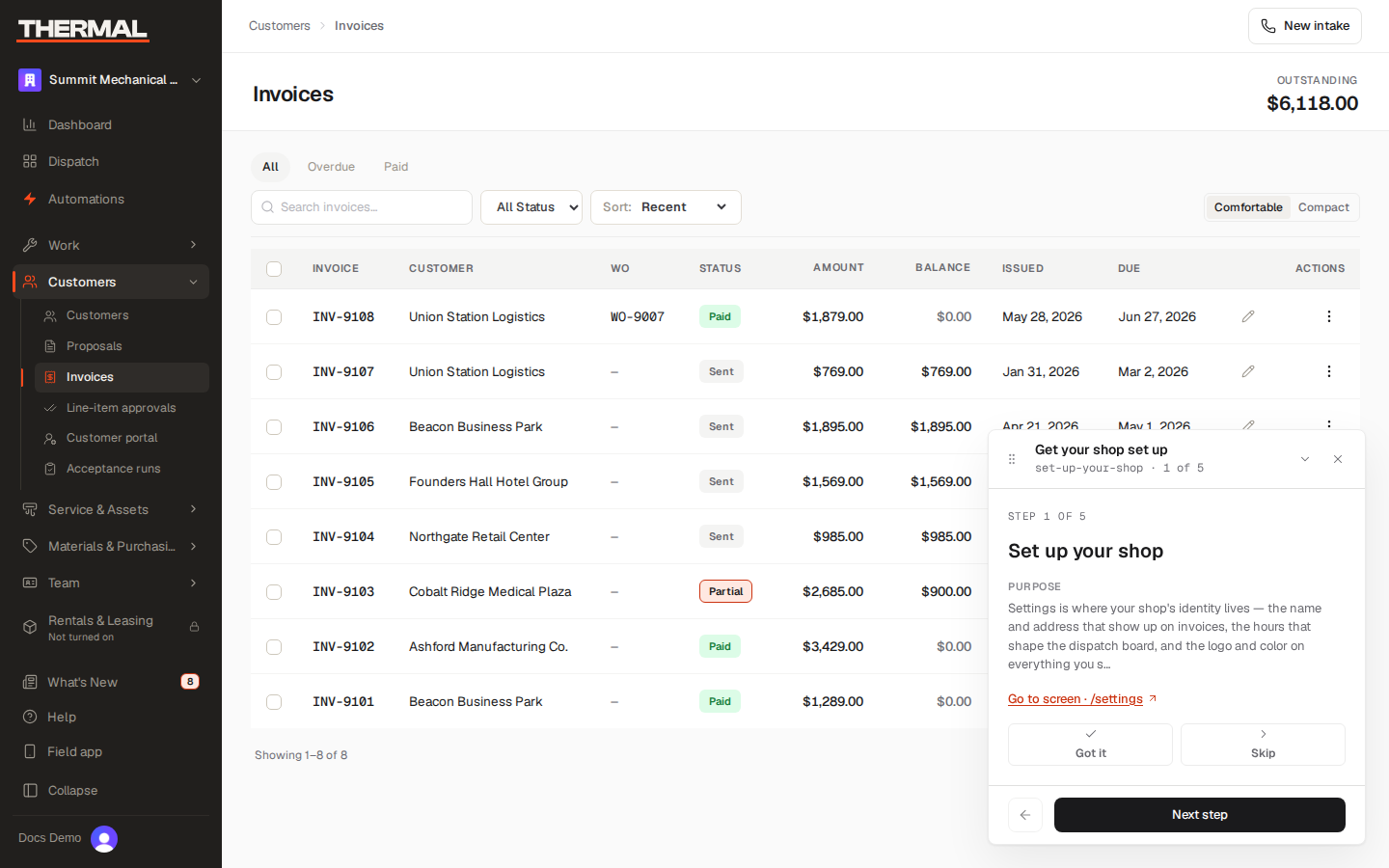
Invoice statuses
An invoice moves through a fixed set of statuses: Draft → (Prebill, if your shop requires it) → Sent → Paid, with Partial for a bill that's been paid down but not in full, and Void for one that's been canceled. The detail page shows this as a status stepper at the top of the record.
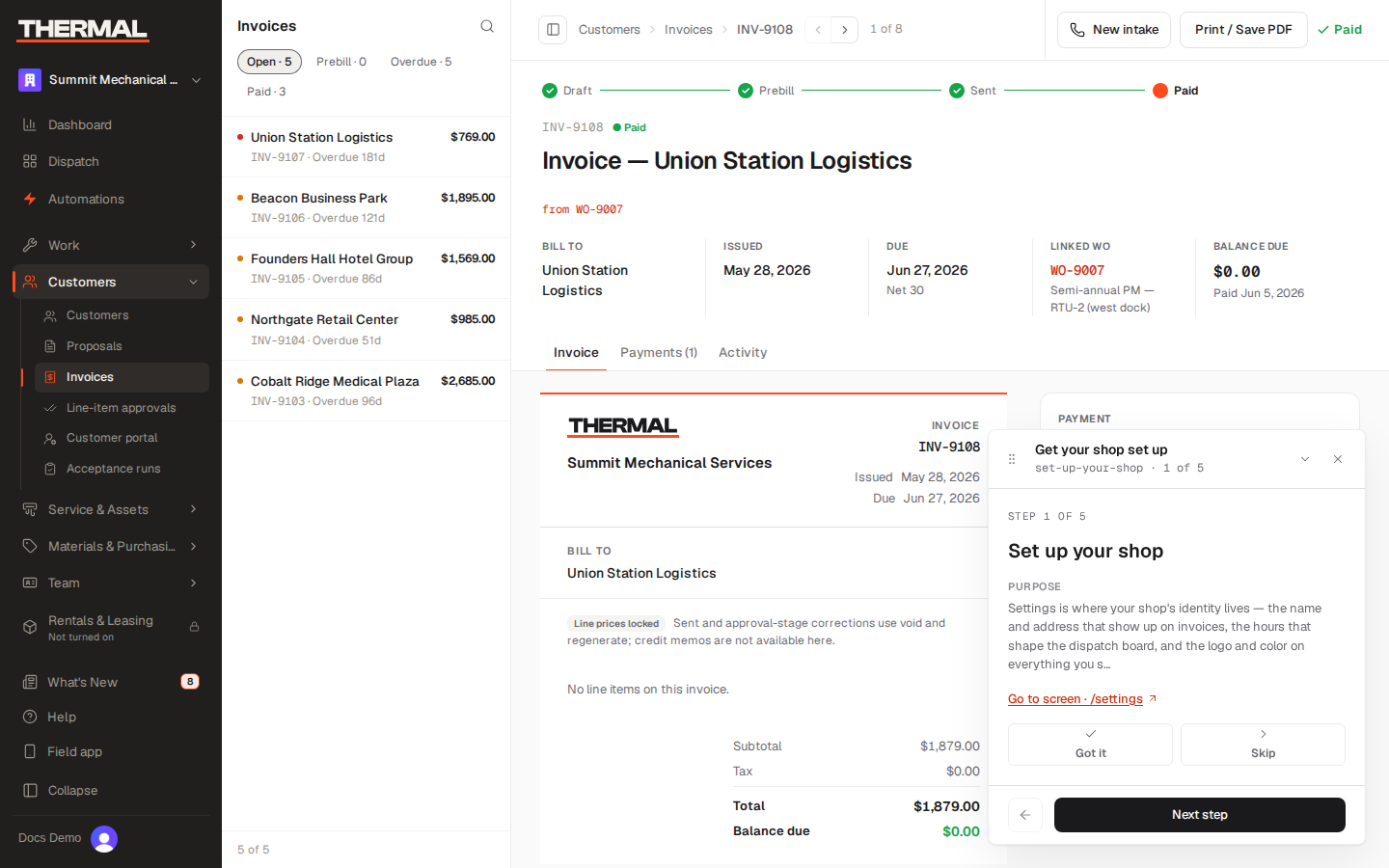
Correct a draft before it goes out
While an invoice is still Draft, Owners and Office users (not Dispatchers) can:
- Adjust a line's price — enter a signed dollar amount and a reason. The reason is required and is kept on the record.
- Add an ad-hoc line — a labor, part, material, fee, lease, or discount line that wasn't on the original work order.
A line item that's covered under warranty shows a (Warranty Covered) line at $0 and can't be price-adjusted.
Once an invoice moves past Draft (Sent, Prebill, Partial, or Paid), the line items lock. To correct a mistake on a sent invoice, void it and generate a new one from the work order rather than editing in place — Thermal doesn't have a credit-memo flow yet.
Tax and due date
Tax and the due date are calculated automatically when the invoice is generated — you don't set them by hand on the invoice itself:
- Tax is computed from the org's sales tax rate (
Settings → Billing), overridable per branch. See Set your pricing and business rules. Adjusting a line item's price afterward changes the subtotal and total but does not recompute tax — the original tax amount is preserved. - Due date is the invoice's issue date plus the shop's payment-terms days, resolved in order from the service agreement, then the customer record, then the org default. The default is 30 days (Settings reference).
If your shop requires prebill approval
Some shops require an office or owner review before a bill goes to a customer. If yours does, a draft invoice shows Submit for approval instead of (or in addition to) Mark Sent. Submitting moves the invoice to Prebill and adds it to the approver queue under Admin → Approvals. An approver there either sends it on to the customer or rejects it back to Draft with a correction note, which shows on the invoice detail page so you know what to fix.
Whether this step is required at all — and above what dollar amount — is an
org-wide setting (invoicing.prebillPolicy,
Settings reference); most
shops leave it optional.
Send the invoice
Choose Mark Sent to move a draft invoice to Sent, or select several invoices on the list and use the bulk Send action to email them out (invoices already awaiting prebill approval, and invoices for internal fleet work, are skipped by the bulk "mark as sent" action). Send just delivers the email — it never changes an invoice's status on its own, so you can resend a copy at any time without affecting where the invoice stands.
Record a payment
Open a Sent or Partial invoice and use Record payment:
- Amount — up to the remaining balance due. Thermal rejects an amount over what's owed.
- Method — Cash, Check, Card, ACH / bank transfer, or Other.
- Reference — optional; a check number or confirmation code.
Recording a payment that covers the full balance moves the invoice to Paid; a partial amount moves it to Partial, and you can record additional payments against it until the balance reaches zero.
If your shop has card payments connected, a customer can also pay online through a link on the invoice — that payment posts back to the same balance automatically.
Reference
- Who can send invoices and record payments — Owners, Office users, and Dispatchers can reach Invoices; only Owners and Office users can adjust line prices or add ad-hoc lines. Technicians can't reach this screen. See Roles & permissions.
- Invoice statuses — the exact status enum is in Status & domain values.